Create a professional business email signature
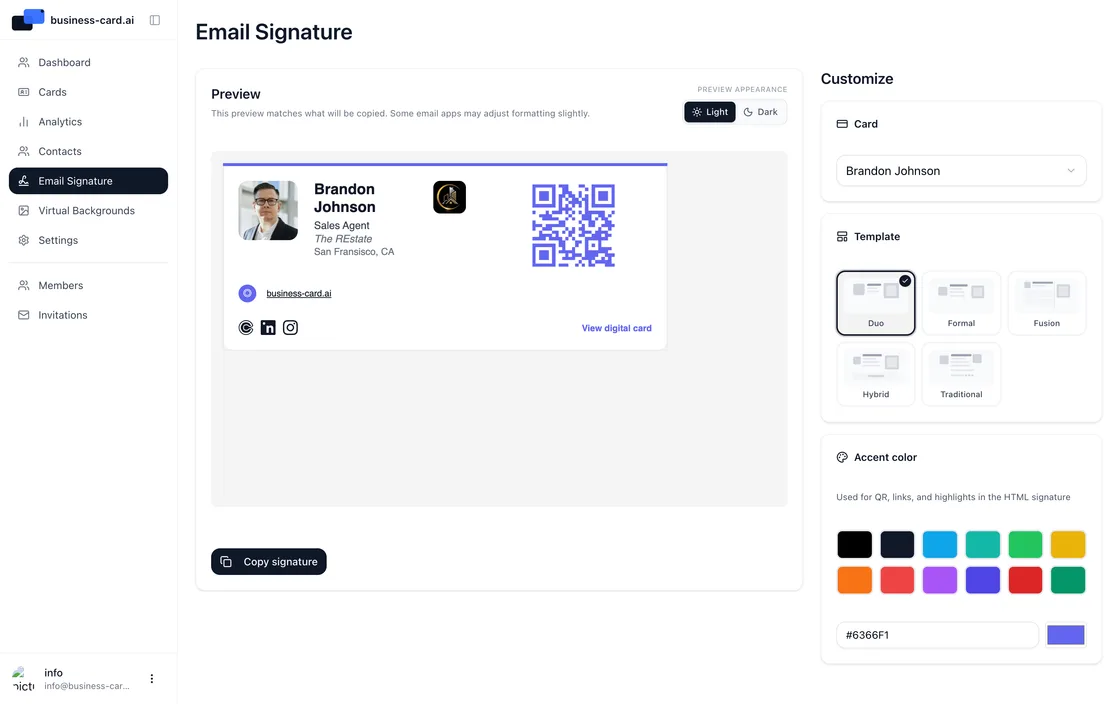
Build a clean, on-brand email signature with your name, title and contact details for free. Start with our free generator, or create it from your digital business card to add your logo and a QR code. Then paste it into Gmail, Outlook or Apple Mail.
What should a business email signature include?
A business email signature should include your full name, job title, company name, one direct phone number, your website and a company logo. Keep it to four or five lines, use your brand colors sparingly and add one clear link, such as your digital business card, so recipients can save your details in one tap.
- Full name, job title and company name
- Direct phone number and business email address
- Company logo, website and one brand accent color
- A link to your digital business card or a QR code to save your contact

Business email signature examples
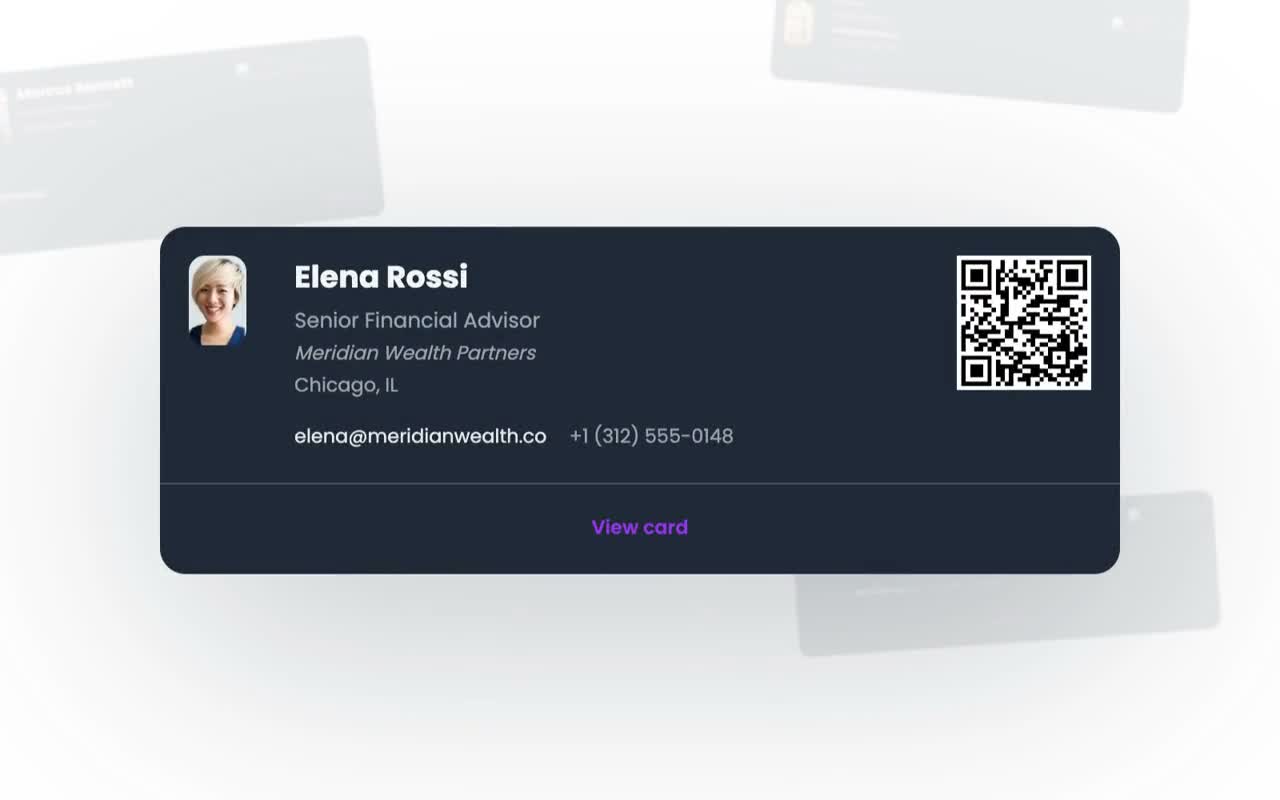
Most professional signatures follow one of a few proven styles. A minimal layout suits consultants and lawyers, a corporate layout with logo and brand color suits larger companies, and a layout with photo and QR code suits sales and client-facing roles. Pick the style that matches how your recipients already see your brand.
- Minimal professional: name, title, phone and website in clean text
- Corporate: company logo, brand accent color and a clear divider
- Client-facing: headshot, direct line and a QR code to save your contact
- Compact: a short two-column layout that stays readable on mobile
How to create a business email signature for free
Use our free email signature generator: enter your details, pick an accent color and copy the finished signature, with no signup and no HTML to edit. Want your logo, photo, a QR code and a choice of templates? Create a free digital business card and build your signature from it instead.
How to add your signature to Gmail and Outlook
In Gmail, open Settings, choose See all settings, paste your signature in the Signature section and save. In Outlook, open Settings, go to Mail and then Compose and reply, paste it into a new signature and save. Our step-by-step guides walk you through both email clients, including setting it as your default.
- Gmail: Settings › See all settings › General › Signature
- Outlook: Settings › Mail › Compose and reply › Email signature
- Set it as the default for new emails, replies and forwards
- Send yourself a test email to check it on desktop and mobile
How to add a signature in GmailHow to add a signature in Outlook
Matching email signatures for your whole team
Everyone on your team can create a matching, professional signature from their own digital business card. Each person picks the same template and brand color, adds their own name, title and contact details, and copies the result into their email client. The outcome is a consistent, on-brand look across every client email.
- Each teammate builds their signature from their own digital card
- Same template and accent color for a consistent company look
- Personal contact details stay accurate for every team member
- Works with Gmail, Outlook and Apple Mail

FAQs

Ready to Transform Your Networking?
Join 6,500+ professionals who've already upgraded to digital business cards. Create your free card today and experience the future of networking.