Business card scanner
Business card scanner: turn paper cards into contacts you can edit
Someone hands you a card. Take a photo in the app or upload it on the web, and AI reads the details into a contact you can check, fix and keep. Scan the details, then review and edit.
Sign in, open Contacts and choose Scan card.
- iPhone & Android
- Upload on the web
- Review before you rely on it
- 01Paper business card
- 02Contact created
- 03Review and edit
01
What does a business card scanner do?
A business card scanner turns a printed card into a contact you can use. You photograph or upload the card, AI reads the name, company, phone, email and links, and a contact is created in your account. You then review it, fix anything that was misread and keep it — no typing from a stack of cards.
- Photograph a card in the app or upload an image on the web
- AI reads the details and creates the contact for you
- Review and edit before you rely on it
02
From paper card to contact in three steps
Capture or upload a paper card and let AI read the details into a contact. When the scan succeeds, check the result against the original, correct anything that needs attention and save your changes.
03
Scan on your phone or upload on the web
Use the scanner wherever the card reaches you. In the mobile app you photograph the card on the spot. Back at your desk, open Contacts in the web app, choose Scan card and upload an image. Both paths create the same editable contact in the same account.
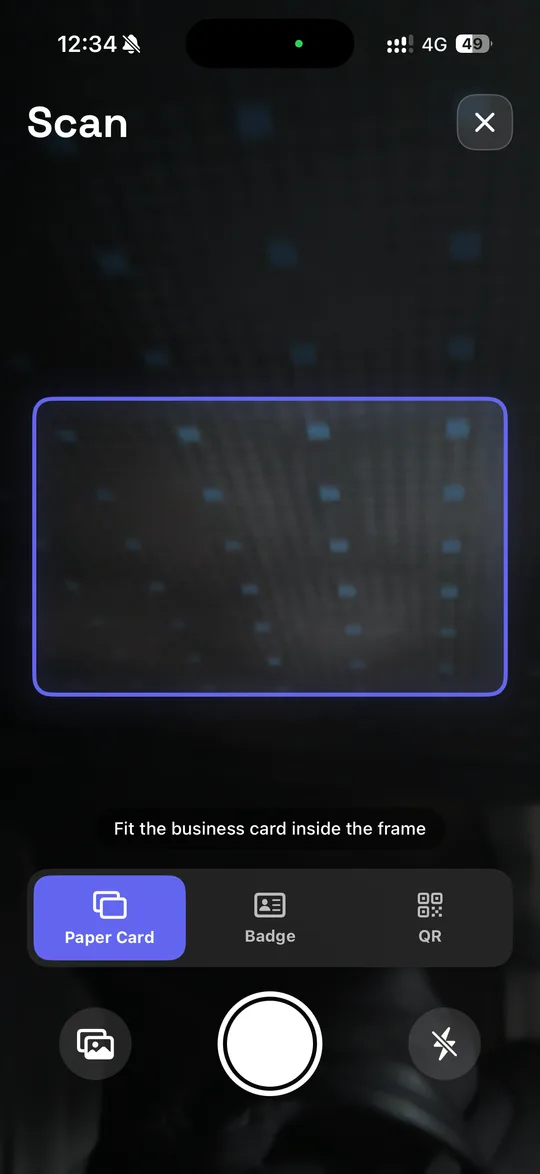
On iPhone and Android
Open the scanner in the app when someone hands you a paper card, and photograph it before you lose it.
On the web
Sign in, open Contacts, choose Scan card and select an image. When the scan finishes, review the contact and make any edits.
JPEG, PNG or WebP, up to 10 MB.
04
Where your scanned contacts live
A successful scan creates a contact in your Business Card AI account, next to the people who shared their details through your digital card. Add notes, keep things organized and find anyone later. Premium and Business include CSV export for use in tools that support a compatible import format; field mapping may be required.
- All your contacts in one place, on the web and in the app
- Notes and organization so the context stays with the contact
- CSV export on Premium and Business

05
Why scan instead of typing
Turn paper business cards into contacts you can find and update. Scanning helps you capture the details without entering every field by hand. Review each result against the original card and correct anything that needs attention before you use it.
- Keep details from paper cards in your account
- Review and correct the extracted information
- Scan with the mobile app or upload an image on the web
FAQs

Put the next business card to use
Turn its printed details into a contact you can check, update and follow up on.
Sign in, open Contacts and choose Scan card.
Keep exploring
Ready to Transform Your Networking?
Join 6,500+ professionals who've already upgraded to digital business cards. Create your free card today and experience the future of networking.